
Reading Assessment Results
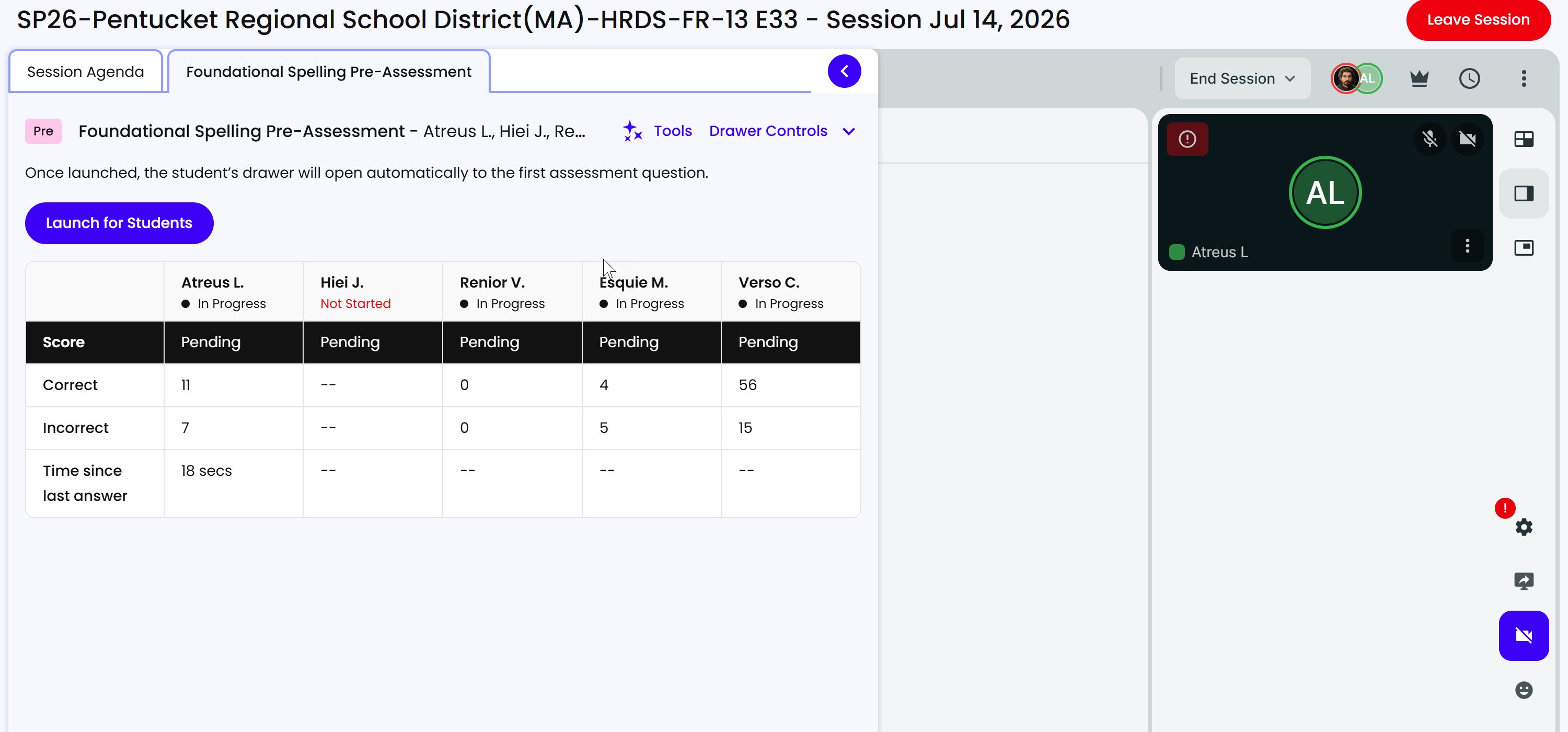
While students take an assessment in a Session, you can follow their progress in real time from the Resource Drawer. Instead of a question-by-question view, the platform shows a live results table that gives you a quick read on where each student stands.
The Live Results Table
Open the assessment in the Resource Drawer to see a row per student, with these columns:
- Student - name.
- Status - Not Started, In Progress, or Complete, with a running count of questions on the student’s path (like “9 of 12 questions”) once they begin. Complete means the student has finished their own path.
- Correct and Incorrect - how many questions the student has answered each way. Read ”—” before they start.
- Time Since Last Answer - how long since the student’s last submission (for example, 1m 32s). Ticks live and turns red past 45 seconds, so a stalled student is visible without clicking in. Only data for answers submitted while you were connected to the Session is shown.
Because assessments adjust the question path based on how a student answers, the number of questions can vary from student to student. A callout above the table calls this out and explains that Complete means the student finished their own path.
Reading the Color-Coded Activity Results
For activities (as opposed to the assessment summary above), the live results show each answer color-coded so you can read performance at a glance:
- Green means the answer was correct.
- Red means it was incorrect.
- When a student took more than one try, the cell shows the number of attempts.
Hover over an answer to see a tooltip with what the color means and the attempt count, so you can interpret a student’s performance without needing to ask.
Reviewing Results After the Session
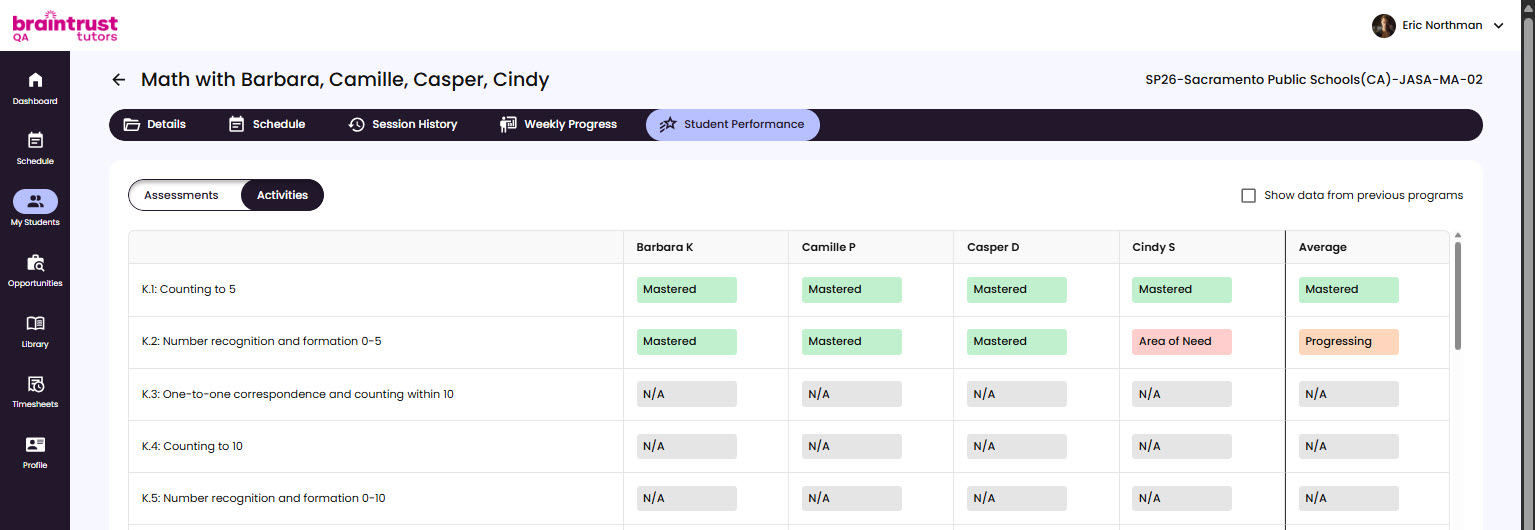
Results populate once the Session ends, so wrap up first - see Wrapping Up a Session. You can then review results on Student Performance. If a result isn’t showing yet, give it a moment; signing out and back in or clearing your browser cache can also help.
Results are viewable right after a student finishes, and assessments support retakes if a student needs to take one again.
For the bigger picture, use the reports. Student Performance shows how the group did across assessments and activities, and the Weekly Progress Report covers the group’s week.