
Wrapping Up a Session
When a Session is over, you leave the room and then finish the record in the Weekly Progress Report. This article covers both steps.
Leaving the Session
In the Session header, click Leave Session (the red button). If you leave by accident, you can get back in - the page offers Rejoin Session, and your students automatically rejoin when you do.
The Session Ended Screen
Once the Session ends, you land on a summary that shows the activity and assessment scores from the Session, plus a View Progress Report button. Click it to go straight to the group’s Weekly Progress Report to finish the record.
Setting the Session Status
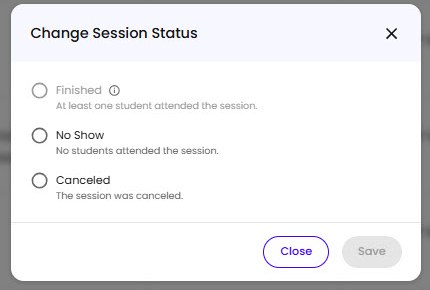
You can record how a Session went from your schedule. Open the Session’s menu and choose Change Session Status, then pick one and Save:
- Finished - at least one student attended.
- No Show - no students attended.
- Canceled - the Session was canceled.
Recording Attendance and Observations
The wrap-up lives in the group’s Weekly Progress Report, not on the Session itself:
- Attendance is recorded per student for the Session. See Tracking Attendance.
- Strengths and challenges are recorded per student in the Strengths & Challenges modal. See Adding Observations After a Session.
You can reach the Weekly Progress Report from the ended screen’s View Progress Report button, or anytime from the group’s Weekly Progress tab.