
Adding Observations After a Session
After a Session, you record strengths and challenges for each student in the Strengths & Challenges modal. At least one Strength or Challenge other than Not Applicable is required per student. These become part of the group’s Weekly Progress Report.
Where to Find It
The Strengths & Challenges modal lives in the group’s Weekly Progress Report, not on the Session itself:
- Right after a Session. When the Session ends, the summary screen has a View Progress Report button - click it to go straight to the group’s Weekly Progress Report.
- Anytime. Open the group and go to the Weekly Progress tab. See Opening a Group.
From the Weekly Progress Report, open a student to bring up their Strengths & Challenges.
Filling In the Strengths & Challenges Modal
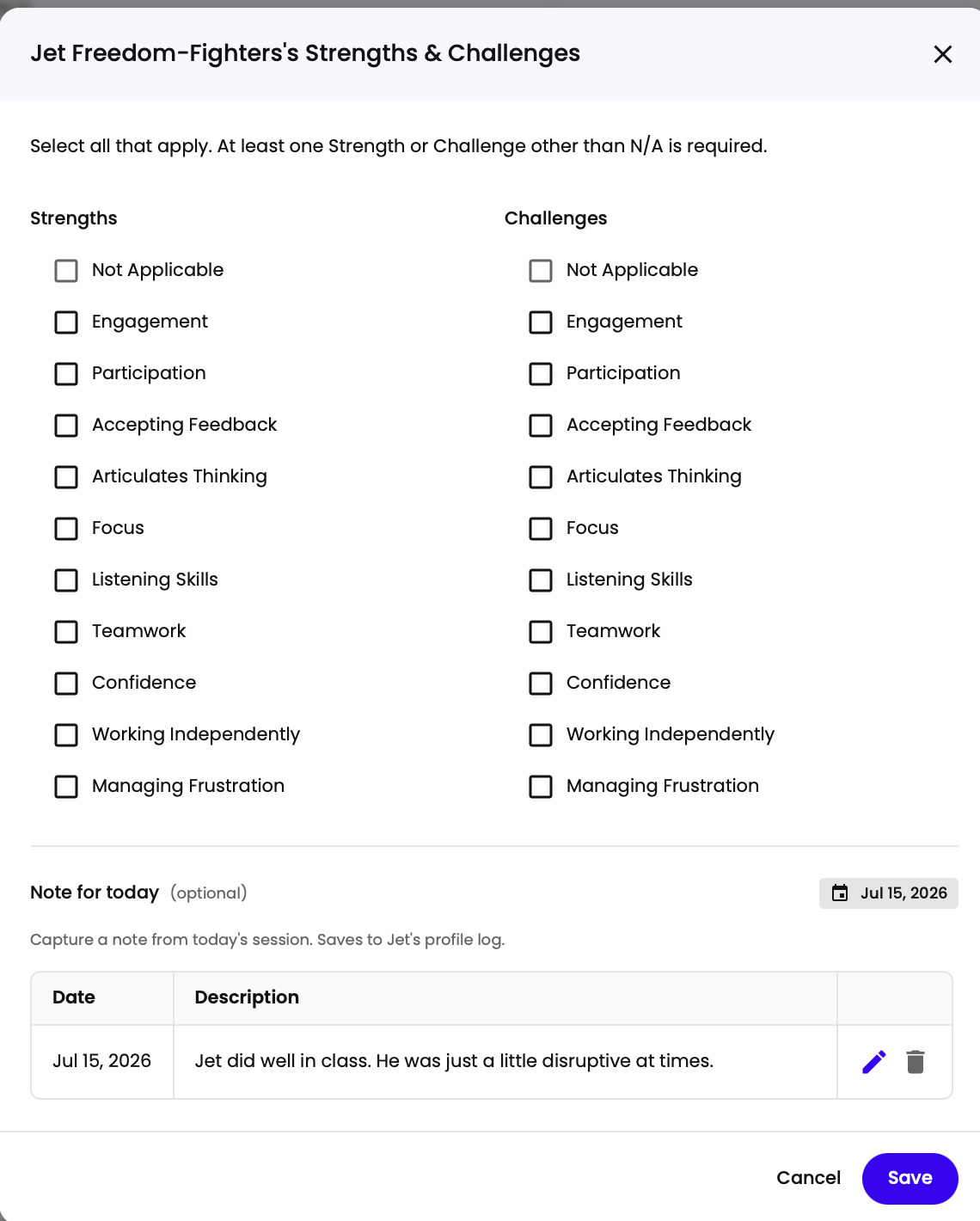
The modal opens on the first student, with their name at the top (“[Student]‘s Strengths & Challenges”). The instruction reads: “Select all that apply. At least one Strength or Challenge other than N/A is required.”
There are two columns, Strengths and Challenges, with the same checklist in each: Not Applicable at the top, then Engagement, Participation, Accepting Feedback, Articulates Thinking, Focus, Listening Skills, Teamwork, Confidence, Working Independently, and Managing Frustration. Check every item that applies - a student can be marked for more than one. You can mark one column Not Applicable, but not both - checking it in one column turns it off in the other, so at least one real Strength or Challenge is always required.
Adding a Note
Below that is a Note for today field, marked optional, with a date pill showing today’s date. Add a note if you want to. Saved notes appear in the table below with edit and delete actions. The note saves to the student’s profile log. You can also add notes to a student from their details page outside this flow.
Moving Through Your Group
The button at the bottom right shows the next student’s name - click it to save this student and move on. Work through the group the same way. On the last student the button reads Save & Close. You can come back and adjust what you recorded through the week - it all rolls into that week’s Weekly Progress Report.