
Opening a Group
Your groups are the sets of students you teach together. You don’t create or set up groups yourself - your Braintrust team handles that - but you have a full view of each group you’re assigned to. This article covers getting to a group and what’s on its page.
Finding Your Groups
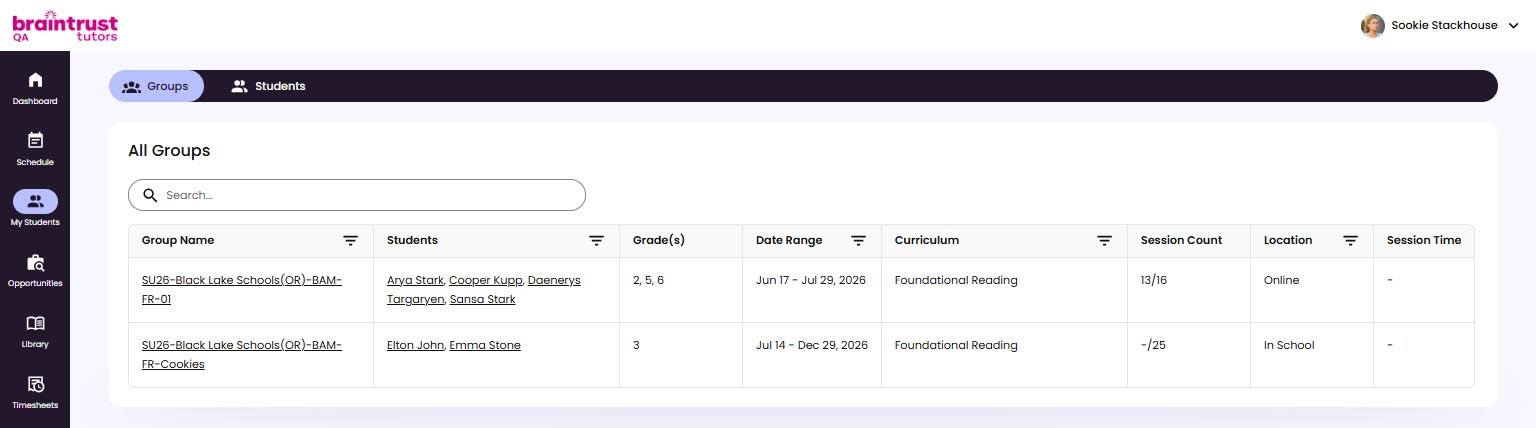
Open My Students and select the Groups tab to see your groups. Click a group to open it. At the top of the group page you’ll see the curriculum program and the students in the group, along with the group’s name.
What’s on the Group Page
The group page is organized into tabs:
- Details - the group’s information, notes from your Braintrust team, the Where to Start recommendations, and the list of students. See Your Group’s Details.
- Schedule - the group’s upcoming Sessions.
- Session History - the group’s past Sessions. See Session History and Talk Time.
- Weekly Progress - the group’s Weekly Progress Report. See The Weekly Progress Report.
- Student Performance - how the group did across assessments and activities. See Student Performance.