
In-Session Tools
Once you’re teaching in Lessonspace, the tools you need for the Session live in the Resource Drawer. It keeps the lesson materials and any assigned assessment within reach without leaving the classroom.
The Resource Drawer
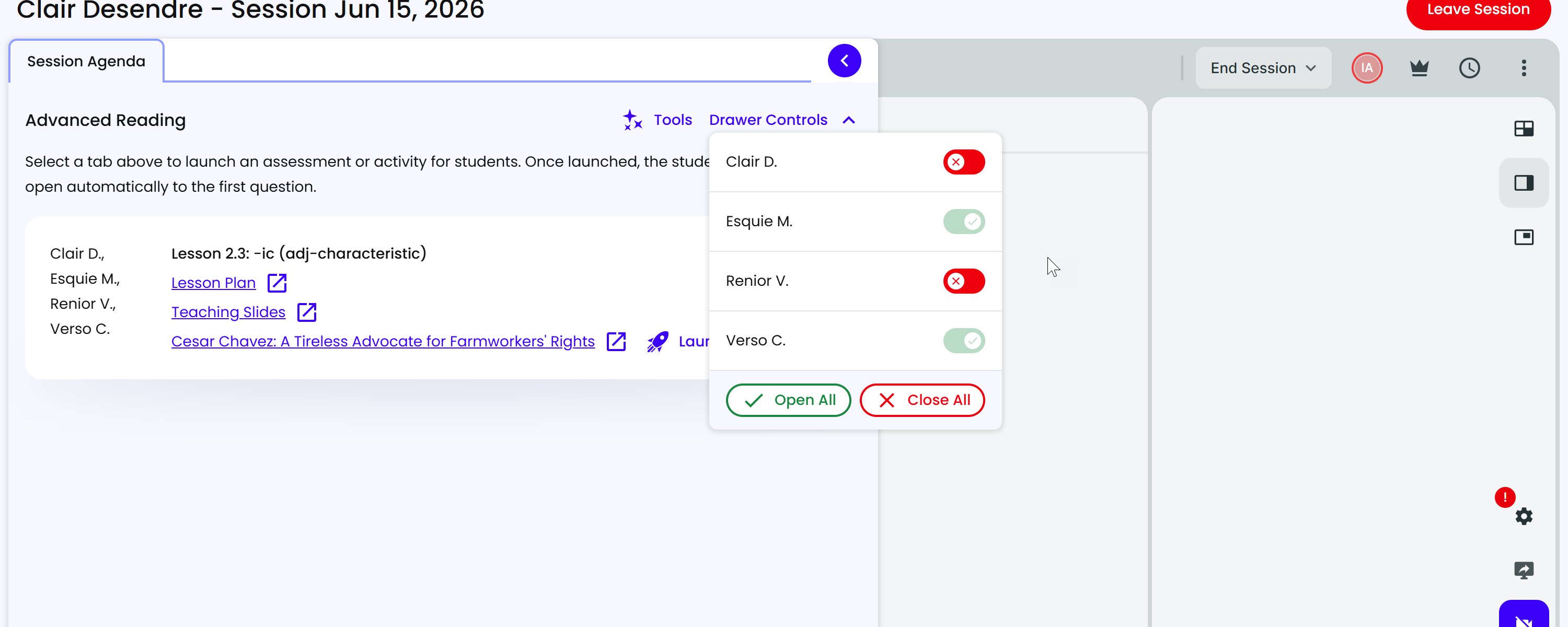
The Resource Drawer opens alongside the classroom and holds what the Session needs:
- The assigned lesson - the lesson plan, teaching slides, and lesson activities for what you’re teaching.
- Icebreakers and getting-to-know-you activities - approved warm-ups you can use at the start or when you have time to fill.
- An assigned assessment, if the Session includes one - open it here to follow student progress as they work. See Reading Assessment Results.
Following Assessment Progress
When an assessment is part of the Session, the drawer shows a live results table - each student’s status, how many they’ve gotten right and wrong, and how long since their last answer - so you can see who’s moving and who may be stuck. The full breakdown is in Reading Assessment Results.
Switching Lessons Mid-Session
If your group finishes a lesson with time to spare, you can start another lesson without leaving the Session. In the Resource Drawer, choose Need to Make Changes to the Above? to swap in new material and keep using the time you have.
One limit: this works for switching between lessons only. If an assessment is currently assigned, you can’t switch to a different assignment mid-Session - the assessment has to be completed and the Session concluded first.
Lead Mode, Read-Only Mode, and Banning
Lessonspace has controls for managing what students can do in the room, reachable from the crown icon in the upper-right corner. Avoid banning a student from the room. If you ban someone by accident, click the crown icon in the upper-right corner and select Unban (below the Lead Mode and Read-Only Mode options) to let them back in.