
Reading Assessments
Every Reading assessment is now adaptive. The platform assigns the assessments, picks where each student starts, and ends each one automatically. You set students up, run the tutor-led assessment, and keep an eye on progress.
- Assigned for you. Pre- and post-assessments land on each Session automatically.
- Two per student. Literacy for everyone, plus Phonics or Comprehension.
- Ends on its own. There’s no set length, and question counts differ by student.
- Everyone finishes. Absent students take it when they return.
Pre- and Post-Assessments at a Glance
Every Reading group takes assessments at the start and the end of the Program. They work the same way both times. The platform assigns them; you run them.
Pre-Assessments
- Start in the second Session, after the icebreaker.
- Results set the group’s Building Blocks and Starting Lesson.
- Most groups need about two Sessions. The group moves on to lessons once most students are done.
Post-Assessments
- Happen in the group’s last 5 Sessions. The platform adds them to your agenda automatically, so start them in the first of those Sessions.
- Results show how much each student has grown. A student who doesn’t finish can’t have growth measured.
- If students finish before the engagement ends, assign lessons for the remaining Sessions. The platform doesn’t add them back on its own.
Both times, each assessment is assigned to the Session for you, ends on its own, and saves progress between Sessions. Every student needs to finish.
Who Takes What
Each student takes two assessments. The platform chooses them from the student’s grade and ELL status (whether the student is learning English).
| Student | Assessment 1 | Assessment 2 |
|---|---|---|
| Kindergarten through Grade 3 | Literacy (student-led) | Phonics (tutor-administered) |
| Grades 4 through 8 (not ELL) | Literacy (student-led) | Comprehension (student-led) |
| ELL student, any grade | Literacy (student-led) | Phonics (tutor-administered) |
The starting question also depends on grade and ELL status. You don’t choose any of this - the platform puts the right assessments on the Session for you.
Where Assessments Fall in the Program
Assessments happen twice: right after the icebreaker and in the final 5 Sessions. Auto-assignment fills in each Session’s agenda as it comes up.
- First Session - Icebreaker. No assessments yet. The first scheduled Session is for getting to know the group. Online groups also do a quick device check (webcam, microphone, speakers).
- Sessions 2 and 3 - Pre-assessments. Each student is assigned every pre-assessment they haven’t finished, so students in the same Session may be on different ones. Plan on about two Sessions; some students finish sooner and some need longer. Results set the group’s Building Blocks and Starting Lesson. Pre-assessments finished in another group in the same Program carry over.
- Once most finish - Building blocks. When most of the group (60%) has finished their pre-assessments, the group moves on. Students who still owe an assessment get it at their next Session until it’s done.
- Main stretch - Lessons. The group works from its Starting Lesson through the curriculum in order. Lessons are auto-assigned one Session ahead, based on how the last Session went.
- Last 5 Sessions - Post-assessments. The final 5 scheduled Sessions are reserved for post-assessments, which leaves room for absences. They run exactly like the pre-assessments, and the results measure each student’s growth. If students finish early, assign lessons for the remaining Sessions.
Getting Students Into the Assessment
- On your Dashboard, select Begin Session on the card at the top for your upcoming Session (see The Next Session Card). The agenda shows today’s assessment; you don’t need to assign anything.
- In the Resource Drawer, open the assessment’s tab (it’s named for the assessment). A Pre or Post label on the tab’s page tells you which one it is.
- Select Launch for Students. Each student’s drawer opens to the assessment’s title screen, where they select Start.
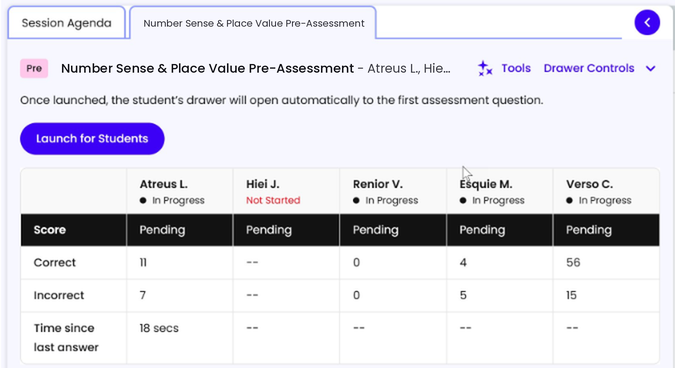

A few things to have in place:
- Each student needs their own device, signed in to their own account.
- Students see a title screen with Start, or Continue if they left off last time.
- Online: put each student in their own breakout room and float between them. How to use breakout rooms
For more on opening the room, see Starting a Session.
Tutor-Led vs. Student-Led
Phonics (Tutor-Administered)
Phonics is the only tutor-administered assessment. You read each question and score the answer as the student goes. Give as little help as possible so the results show what the student can really do.
- Open the assessment’s tab and choose the student from the student selector. You decide which students to pull for this assessment and when.
- Select Launch for Student. The full question and answer choices appear on your screen, with audio where the question has it. Phonics doesn’t use a title screen.
- Read the question aloud (for example, “What sound does this letter make?”), listen, and mark it correct or incorrect. You must choose one before moving on.
- A counter at the bottom shows how many more questions until the assessment may end. It counts down as you go.
- Questions jump ahead or step back on their own based on the student’s answers. Keep reading what appears. The assessment ends by itself.
Literacy or Comprehension (Student-Led)
Students work on their own and the platform scores every answer. You do not score any part of the Literacy or Comprehension assessment.
- Open the assessment’s tab (Literacy or Comprehension) in the Resource Drawer.
- Select Launch for Students.
- Students press Start and work through the questions independently.
- Watch the progress summary and check on anyone whose last answer was a while ago.
- The assessment ends by itself when the student has finished their question path.
Reading the Student Progress Summary
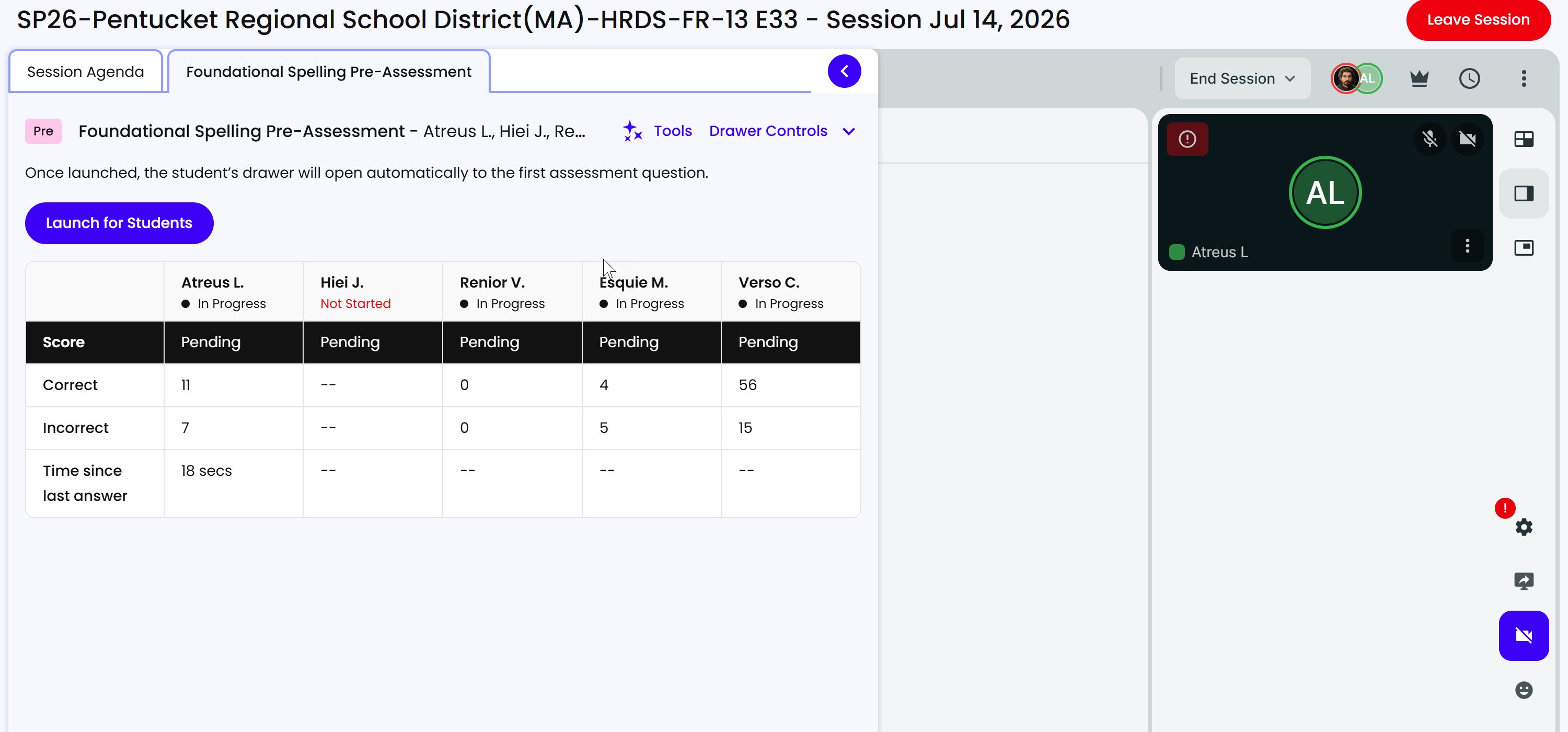
Each student gets a column in the Student Progress Summary.
- Status (under each name) - Not Started, In Progress, or Complete. Complete means the student finished their own question path. Students stay Not Started until they select Start on their title screen, so absent students won’t look like they’re working.
- Score - shows Pending until the student finishes, then correct out of questions presented (for example, 15/18).
- Correct and Incorrect - count answers so far. They show
--before the student starts. - Time since last answer - helps you spot who may be stuck. It only counts answers submitted while you’re connected to the Session.
Totals differ by student. One student may answer 71 questions and another 9. That’s expected on an adaptive assessment. For more on this table, see Reading Assessment Results.
Why Students Get Different Questions
Each student starts at their own grade-level starting point, skips ahead when they’re strong, steps back when they struggle, and stops once the platform has what it needs.
- Strong answers skip ahead. Several correct in a row (three, in a simplified example) jumps the student forward. Skipped questions count as correct for now, and the jump stops at an essential question, which is never skipped.
- A miss at the start steps back. If a student misses the first question at their starting point, that signals the start is too high. The assessment moves right away to the starting point for the grade below, so they’re working at a level they can access. Placement reflects the grade where the student actually performed.
- Struggling right after a jump steps back to the skipped section. If the student’s percent correct on recent answers drops too low after a jump, the jump was too far. The student returns to the skipped section, and the skipped questions become unanswered again. Questions the student already answered keep their answers.
- Above-grade questions never lower the score. A student who reaches the end of their grade band may keep going to show above-grade skills. Those questions aren’t scored.
- It ends on its own. A set number of misses in a row, or a miss past the grade band, ends the assessment.
Two students in the same group can see different questions and different totals. There’s no fixed length - an assessment can end after a handful of questions or run over more than one Session. Real assessments have more questions than these examples, and the curriculum team sets the thresholds for each assessment.
What the Results Do
You don’t need to make any decisions from results. Pre-assessment results set where students start; post-assessment results measure their growth. You can check them any time.
Viewing Results
- In the left-hand menu, select My Students.
- Open the Groups tab and select the underlined group name.
- Go to the Student Performance tab to see each student’s status and score. See Student Performance.
After Pre-Assessments: Where to Start
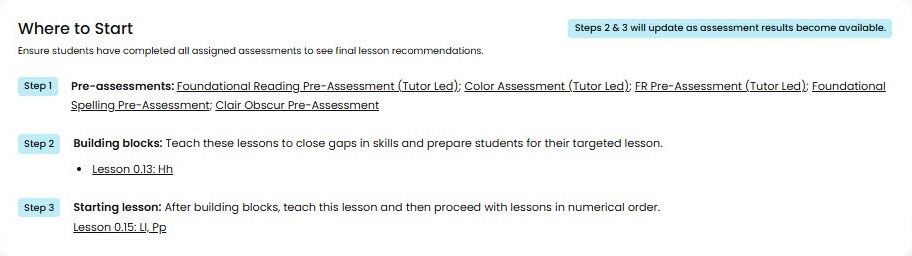
The Where to Start card on the group’s Details tab shows what the results set. See Your Group’s Details.
- Step 1 lists the group’s pre-assessments. These are set for you.
- Building blocks are short lessons that close skill gaps, taught in the order listed. A lesson becomes a building block when more than half the group hasn’t mastered it yet.
- Starting lesson comes after the building blocks. The group then moves through lessons in numerical order.
Where to Start is set for the whole group, not for each student. Steps 2 and 3 fill in as results come in and recalculate whenever new results arrive or the group’s students change, so they settle once every student has finished.
After Post-Assessments: Growth
- When a student finishes a post-assessment, the platform compares it with their pre-assessment to measure their growth.
- Growth can only be measured for students who finish both the pre- and post-assessment, so make sure every student completes it.
- If students finish before the engagement ends, assign lessons for your remaining Sessions.
Common Questions
A student was absent on an assessment day. What do I do?
Nothing extra. A student who still owes an assessment gets it assigned again at the next Session they attend, even after the group has moved on to lessons. If a student attends 4 Sessions without finishing a pre-assessment, you’ll get an email reminder.
A student didn’t finish before the Session ended.
Progress saves automatically. Next Session they’ll see Continue and pick up where they left off.
Why did two students get different numbers of questions?
The assessments are adaptive. Each student starts at their own grade-level point, skips ahead when they answer well, and steps back when they miss questions. Scores are out of the questions each student was given.
A student’s post-assessment didn’t show growth. What happens?
They may be reassigned the post-assessment. Let the student know why: they’ve been taught this material and have shown mastery of the skills in lessons, so a post-assessment without improvement usually reflects the effort they put in, not their potential. Encourage them to slow down and show what they know.
Can I end an assessment early?
No. Assessments end on their own. If a student has been on the same assessment for several Sessions and seems stuck, contact Tutor Support, who can close it for you.
Most of my group is done, but one student isn’t. Do we wait?
No. Once most of the group has finished, the group moves on to lessons. The student who still owes an assessment keeps getting it assigned until it’s done.
When do post-assessments happen?
The platform reserves a Reading group’s last 5 scheduled Sessions for post-assessments and assigns them automatically. If students finish before the end of the engagement, assign lessons for your remaining Sessions.
Do I need to choose which assessment a student takes?
No. The platform picks each student’s assessments from their grade and ELL status and puts them on the Session for you.