
Assigning a Lesson to a Session
Most of the time you won’t need this. The platform assigns content to your next Session automatically, based on where your group is in the curriculum - see How Content Gets Assigned to Your Sessions. You walk in with the lesson or assessment already set.
This article is for when you want something different, or when a Session has no content yet (an icebreaker Session, or a student with nothing owed). Auto-assigned content shows as read-only on the Session, with edit controls appearing when you hover over it, because it’s an assignment that’s already been made rather than one waiting on you. Changing it takes you into the same lesson selection step you use when you set content yourself.
Opening the Lesson Selection
Three ways in, and all land on the same step:
- From the Session itself. Hover over the assigned content on the Session to reveal the edit control. If nothing is assigned yet, Assign Lesson appears on the Session instead - click it.
- From your schedule. Find the Session on the Dashboard. If no lesson is assigned, Assign Lesson appears on the Session.
- From the Next Session card. When your next Session has no lesson set, the card’s agenda shows an Assign Lesson button. Click it.
If you’re scheduling a new Session, start a new Session from your schedule and fill in the time, Program, and students or groups, then continue to the lesson selection step.
Choosing the Lesson
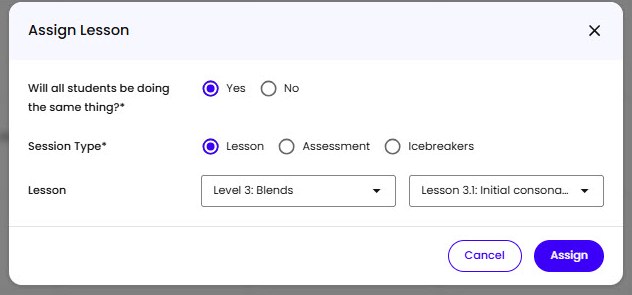
The lesson selection step asks Same agenda for all? with a Yes or No choice:
- Yes assigns one lesson (or one assessment) to everyone in the Session.
- No lets you set a lesson or assessment per student - this is how you put one student on an assessment while the rest carry on with the lesson.
For each student, choose Lesson or Assessment, then pick the specific one. Lessons are grouped by level, with individual lessons inside each level. For assessments, pick which one to assign.
Saving Your Choice
When you’re done, you have two options:
- Save & Close sets the lesson on the Session so it’s ready when the time comes.
- Start Session saves the lesson and opens the Session in Lessonspace right away - use this if you’re assigning the lesson right before it begins.
If a Student Has Already Submitted
If a student has already submitted an assessment for the Session, you can’t change it. Submitted work is fixed.